Sunday, September 27, 2015

Oracle India Localization Interview Questions & Answers – Part I

Oracle SCM Functional Interview Questions & Answers – India Localization – Part I

How do I view India localization Taxes included in a PO that I would like to approve from Notification summary screen?
Notifications are generated by Workflow engine and India Localization taxes do not appear in notification summary screen.
In order to view the Purchase Order with the Tax Amount run ‘India PO Printing report’ for the Order.

How do I use Supplier Merge effectively with localization?
a. Setup ‘Supplier Additional Information’ screen for the new Supplier before running Supplier merge report.
b. After completing the setup Run Supplier Merge
If you do not do the above, Supplier Merge Report ends with an Error.

Which Localization tables are updated in the course of Purchase transaction created with Localization Taxes?
Purchasing Data flow with India Localization:
1. When PO is created with taxes attached, records are populated into
“jai_po_line_locations” table for Shipment level details and “jai_po_taxes” table for tax related entries.
These tables will be updated on Insert, Update and Delete.

2. On creating the receipt from Receipt Localized screen following tables are populated
“jai_rcv_lines” table for line level details & “jai_rcv_line_taxes” table for tax related entries.

3. When the Receipt localized form is closed “For Passing Accounting Entries” concurrent request is submitted. This would
a. Generate Accounting Entries by populating into “gl_interface” table &
b. Populate “jai_rcv_journal_entries” table for Receipt Accounting entries.
If excise types of taxes are attached then “jai_cmn_rg_23ac_i_trxs” & “jai_cmn_rg_23ac_ii_trxs” tables will get populated depending upon the item classification.

4. On Delivery to a Bonded Sub inventory Non cenvatable Taxes would be added to the item cost. This will insert records into
a. “jai_rcv_journal_entries” table for delivery entries &
b. “mtl_material_transactions_temp” table for average cost update. The Tax amount will be populated into Value_Change field.
Inventory transfer worker triggered and pushes the record from “mtl_material_transactions_temp” to “mtl_material_transactions” table.
When Average cost update worker triggered for costing “mtl_transaction_accounts” & “mtl_cst_txn_cost_details” tables will be populated.

What do we do when Taxes have not defaulted on PO created against the Quotation?
While Converting the Quotation to Purchase Order using Copy Document, taxes will not flow until you run "Concurrent request for defaulting taxes in PO when linked with quotation".

How do taxes default on a Purchase Orders?
India Localization Tax Configuration follows 3-way defaulting methodology for Tax Defaulting. This feature automates defaulting of Taxes that would be applicable to the Transactions, Below are the actual setups required to default the taxes:
1. First two levels of tax defaulting are based on the Item Category list, where, for every Item in the list, a Tax Category is associated.
a. First level considers the Item Category list attached to the Supplier and Site.
b. In the absence of Item Category list for Supplier and Site combination, the Item Category for the null Site of the Supplier is considered.
2. If neither of the above returns any Tax Category, the same is fetched based on the Item Class assigned to the Item. Tax Category and Item Class relationship should be set in the Tax Category window.
In all the cases, after arriving at the Tax Category, the taxes defined thereof are defaulted. The user can make changes to the taxes that have been defaulted.
Where all levels of defaulting fail, the user would have an option to assign Taxes to the Shipment lines manually.

Can we change taxes on an Approved PO?
Taxes can be modified only before approving the Purchase Order. If you need to change the taxes on approval of the Purchase Order then, create a Purchase Order Revision by modifying the PO lines. Change Taxes on this modified PO.

What is the impact on taxes on changing quantity on a PO Release?
Whenever you change quantity on Releases (through the Base Application screen), you need to navigate to Releases (Localized) screen, open Tax Details by Clicking on the Taxes Button. Click the Apply button in Tax details screen to enable recalculation of taxes based on the revised Quantity.

How to avoid the Error: ‘Currency conversion rate not defined in the system’ when the PO was amended?
This error occurs when PO is created or updated.
This will happen only when Inventory Organization is not attached to the Ship To Location
Resolution:
Attach the Inventory Organization to Ship To Location:
Navigation:
India local Inventory Responsibility > Oracle Purchasing > Setup > Organization > Location

How is Per landed cost calculated for a quote that includes localization taxes?
Per landed cost = Unit Price + [Sum (non cenvatable taxes) / qty]
Per Landed Cost can be viewed through Quote Analysis (localized) screen by navigating through
India Local Purchasing RFQ and Quotations Quote Analysis (localized)

How do we make the Supplier available in the Supplier LOV on a Quotation?
Please set 'HOLD_FLAG' attribute of the supplier to 'N' in Supplier screen.
Navigation:
India local Inventory Responsibility > Oracle Purchasing > Supply base > Supplier.

Can we create multiple regimes for service tax? Can we have the same registration value for n number of organizations?
No, we cannot create multiple regimes for service tax. Yes, we can have same registration numbers for multiple inventory organizations.

Whether tax is created against inventory org or operating unit
Taxes are created against operating units. But against inventory organizations only we can enter        the form as transactions happen at inventory organization level.

What register report is used for finished goods?
RG-1 register is used for finished goods

Where the MODVAT Flag & the recoverable Flag are available? What will happen if both Flags are disabled and write their localized accounting entries?
MODVAT Flag available at PO level & recoverable Flag available at the receipts level. If both the Flags are disabled, claim cannot be made.


What are the basic registers we use for excise?
Basic Registers used for excise are:
RG23A Part I & II,
RG23C Part I & II,
RG-1
PLA

Can we see the register while creating the receipt?
Yes. Can be seen.
Navigation:
Tools > View Register

Can we see the localized accounting entry in PO receipt before importing?
No. Localized accounting entry cannot be seen in PO before importing.
It can be seen only after importing.


Reference: Collected from various web sources.

Oracle WIP – Supply Types:

Oracle WIP – Supply Types:

In Oracle WIP, the Supply Types decides the component supply method to the discrete jobs and repetitive schedules. It also controls how the materials are planned in Oracle MRP & Supply Chain Planning and are costed in Oracle Cost Management.

Supply types can be assigned to the items during defining new items in Oracle Inventory.
Also assign the supply types to components when creating the bills of material in Oracle Bills of Material and Oracle Engineering.

Following are the supply types used in Oracle WIP:
1. Operation Pull
2. Assembly Pull
3. Push
4. Supplier
5. Bulk
6. Phantom
7. Based On Bill

Operation Pull:
Components Issue will be taken care of by the system itself. Once the operation is completed, required components for the work order will be pulled from the mentioned supply subinventory.

Assembly Pull:
Once the assembly is completed, required components for that assembly will be pulled from the given supply subinventory.

Push:
In Push type, user needs to issue the components manually through WIP Component Issue transactions before starting the Job.

Supplier:
Supplier type is mostly used for outsource processing (OSP). Issue of item by supplier, need not to transact this item. It is only for reference only to the WIP Person as this component need not to be used.

Bulk:
In Bulk Supply type the component requirements can be viewed and are displayed on reports. They can be used to communicate to the shop floor that bulk components must be used but need not be transacted. Bulk supply type components are not backflushed nor do they default when issuing all components for an assembly. However user can manually issue specific bulk components to a discrete job or repetitive schedule.

Phanthom:
Phantom Supply type components can be assigned to bill of material component subassemblies and subassembly items in BOM and Engineering. Components of phantom subassemblies are used as if they are assigned directly to the parent assembly. Phantom supply types cannot be assigned to jobs and repetitive lines/assembly associations in Work in Process.

Based on Bill:

Based on the Bill the components are to be issued. Method of issuing the components is given as supply type in Bill of Material. If user can use the same, select based on Bill.

Saturday, September 26, 2015

Oracle Order Management – Defining Freight Carriers

Oracle Order Management – Freight Carriers

Freight Carriers Menu is used to setup carriers, which transports shipments to and from customers, suppliers, and internal organizations.

Defining Freight Carriers:
Navigation:
India Local Order Management Responsibility > Oracle Order Management > Setup > Shipping > Freight Carriers, Cost Types > Freight Carriers


Name & Short Name: Define the Name and Short Name for the carrier.
Active Flag: Enable the Active check box and Generic check box, if applicable.
SCAC Code: Enter the standard carrier alpha code (SCAC). (Optional)
Default Currency: Define default currency for freight carrier cost calculations.

Services Tab:
Service Level: Select the Service Level for this carrier. Examples of service level include: next day air, ground, and next day air early AM.
Mode: Select the Mode (of transportation) for the carrier.
Once Service Level & Mode defined each service level and mode combination, Oracle Shipping Execution assigns a ship method and displays it in the Ship Method field.
The format of the generated ship method is <carrier short name>-<transportation mode>-<service level>,
Ex: BDHL-Air-Worldwide Express.


Service Levels Button:
Define Service level Lookup codes.


Organization Assignments Button:
Inorder to use the defined carrier in the organization, assign the shipment method to the required organizations. Without assigning to the organization, the shipment method will not be accessed in the organization.


Other tabs are optional to define:
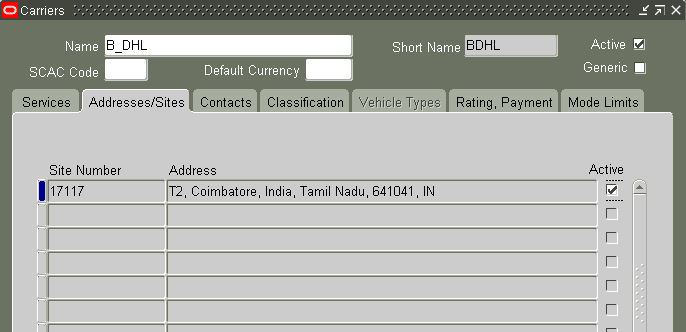
Addresses/Sites Tab: (Optional)
Define Site Number & Address details of the carrier


Contacts Tab: (Optional)
Define the Contact Names & Phone details of the carrier


Classification Tab: (Optional)
Define the classification of the carrier


Rating, Payment Tab: (Optional)
Define UOMs, Freight Payment & Audit and rating attributes of the carrier.


Mode Limits: (Optional)
Define Truck Load & Size restriction details


Now the shipping method can be used while generating sales order.


Oracle Inventory – Shipping Methods

Oracle Inventory – Shipping Methods

Shipping Methods are the way user ships the material. Shipping method is a QuickCode used to define specific shipping methods.
When user creates a shipping method, must enable it before using in shipping network.
If a shipping method is disabled, it cannot be used in a shipping network.
User can associate this shipping methods with lead times in the Inter-org Shipping Methods window.

Defining Shipping Method:
Navigation:
India Local Inventory Responsibility > Setup > Organizations > Shipping Methods


Access Level: The access level restricts changes that are possible to a lookup type. The possible levels are:
System - No changes to the lookup codes are allowed.
Extensible - New lookup codes can be added. However, User cannot modify seeded lookup codes.
User - User can change any lookup code.
Code: Enter a unique alphanumeric code describing the shipping method. A maximum of 250 QuickCodes can be defined for a single QuickCode type. Inventory uses this value in the list of values for the Shipping Method field in the Inter-org Shipping Methods window.
Meaning: Define a meaning for the code
Description: User can display the description along with the meaning to give more information about the Lookup.
Tag: Optionally enter in a tag to describe the lookup. The tag can be used to categorize lookup values.
Effective Dates: Define a effective from to dates
Enabled: Indicate whether the shipping method is enabled.


Save the work.


Friday, September 25, 2015

Oracle Apps: Bills Of Material – Charge Type Field in Resource Menu:

Oracle Apps: Bills Of Material – Charge Type Field in Resource Menu:

In Oracle Apps, the Charge Type field in Resource Menu is used to determine how each resource is charged in Work in Process. When an operation completes, Work in Process records the units applied to the job or repetitive schedule in the resource unit of measure. Charging of resources can be performed both manually & automatically.

Navigation:
Bills of Material Responsibility > Routings > Resources


Manual:
Work in Process does not automatically charge this type of resource to a job or repetitive schedule. User must manually charge it to a job or repetitive schedule using Work in Process.

PO Receipt:
Automatically charge this resource upon receipt of a purchase order in Oracle Purchasing. The assemblies are not automatically moved to the next operation upon receipt, so user must manually move them using Work in Process.

PO Move:
Automatically charge this resource upon receipt of a purchase order in Oracle Purchasing and move the assemblies to the Queue intraoperation step of the next operation or to the To move intraoperation step if this is the last operation.

WIP Move:
Work in Process automatically charges this type of resource to a job or repetitive schedule when user completes an operation.

Oracle Inventory – Defining Organization Access

Oracle Inventory – Defining Organization Access

Organization Access Form is used to control the accessibility of the Organizations by a responsibility.

Organizations to be specified for accessing the responsibility by mapping responsibilities to Organizations. Once this mapping is set up, a user logging into an Oracle apps is restricted to the organizations mapped to the responsibility chosen.
Change Organization window is also restricted.

Until an organization is assigned to a responsibility in this window, all responsibilities have access to all organizations. Once restricted any responsibility to an organization, then explicitly define the organizations which all responsibilities can access.

Multiple responsibilities can be added to access the same organization and all responsibilities will have access to that organization.

System managers determines which responsibilities a user can access when they establish system security. If there are no restrictions entered for an organization, it can be accessed by all responsibilities.

Organization Access Setup:
Navigation:
India Local Inventory Responsibility > Oracle Inventory > Setup > Organizations > Organization Access


Org: Enter the org code for the organization to which the responsibility to be restricted.
Application: Enter the Oracle Applications product containing the responsibility to map to the organization entered in the Org field.
Name: Enter responsibility name to be mapped to the organization entered in the Org field.

Combination of organization, application and responsibility determines the access.

Save the work.

Thursday, September 24, 2015

Oracle Purchasing – Setup Steps

Oracle Purchasing – Setup Steps

Oracle Purchasing – Setups steps to be followed during the implementation.

Step#
Setup
Description
Remarks
1
Setup System Administrator Responsibility
For User Creations & Printer Setups
Required
2
Define Key Flexfields
To set HR Employee & Inventory Item Flexfields
Required
3
Define Calendars & Currencies
To define period types, accounting calendars, transaction calendars, workday calendar, currencies.
Required
4
Define Organizations
To create locations, legal entities, Ledgers, Business Group, Operating Units, Master org & Inventory org.
Prerequisite setup for Purchasing.
5
Define Unit of Measurements
Define the units of measure for supply of items.
Prerequisite setup for Purchasing.
6
Define Items
Define the Items which are to be purchased.
Prerequisite setup for Purchasing.
7
Define Tax
Define the tax based on the requirement
Required
8
Define Personnel
Define employees, jobs, positions
Prerequisite setup for Purchasing.
9
Define Approval Hierarchy
Define Position or Supervisor hierarchy for purchasing
Required
10
Define Workflows
Define workflow to perform document approvals, automatic document creation
Prerequisite setup for Purchasing.
11
Set Profile Options
Define profile options to specify how purchasing to be controlled.
Required
12
Open Purchasing Periods
Open Purchasing periods for each operating units
Required
13
Define Approval Information
Define Approval groups & Approval Assignments
Required
14
Define Document Types
Define the Purchasing document types
Required
15
Define Lookups
Define the Purchasing Lookups
Required
16
Define Attachments
Define the Purchasing attachments
Optional
17
Define Purchasing Flexfields
Define Purchasing category Flexfields, value sets & segments
Required
18
Define Purchasing Options
Define Purchasing options for each operating units
Required
19
Define Buyers for each operating units
Required
20
Define Document Controls
Define Line types
Required
21
Define Financial Options
Define Financial options for each operating unit
Required
22
Defining Receiving Options
Define Receiving options for each operating units
Required
23
Define Supplier
Define Suppliers with information and assign to operating unit
Required
24
Choosing Document Creation options
To choose the workflow for Automatic document creation
Required
25
Define Set Up Transaction Managers and Resubmission Intervals.
Start the Transaction managers, Receiving transaction manager & Document approval manager
Required